






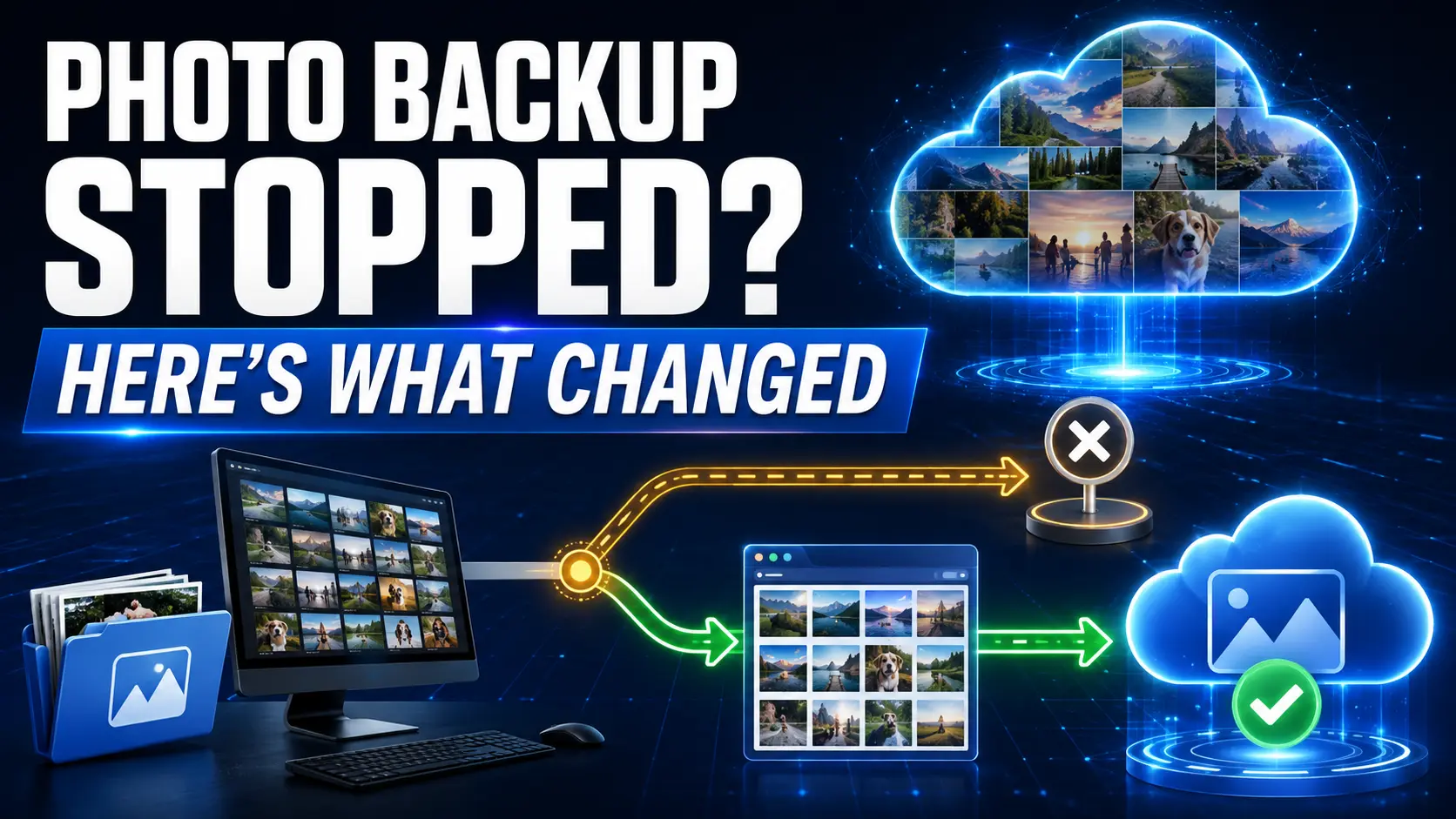
Google Drive Photos backup not working on your computer after August 10, 2026? It may not be a bug. Google Drive for desktop has stopped supporting its Google Photos backup feature, so new photos and videos will no longer reach Google Photos through the old Drive desktop workflow.
Your existing photos that were already backed up to Google Photos are not automatically deleted because of this change. To continue automatically backing up folders from your computer, Google now directs users to Google Photos’ own Back up folders feature.
Quick answer
Drive for desktop has not been discontinued.
Only its Google Photos backup function has ended. Normal Google Drive file syncing is a separate feature.
Action required
If you relied on Drive for desktop to send new PC or Mac photos into Google Photos, you now need to configure the replacement Google Photos folder-backup workflow.
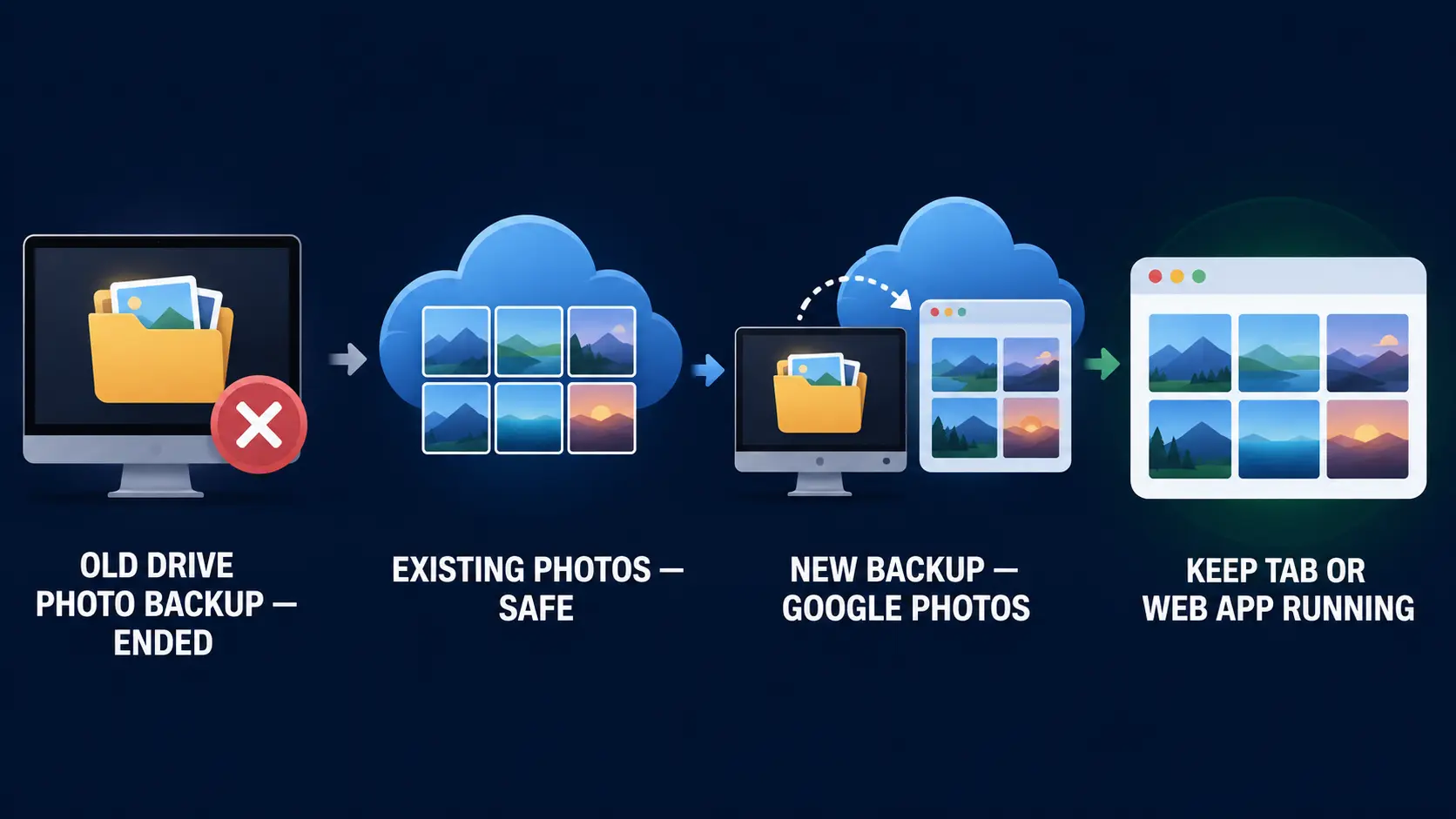
Support ended August 10, 2026.
Remain in Google Photos unless you delete them.
Use Google Photos’ Back up folders feature.
The Photos tab or Photos Web App must keep running for automatic backup.
What this guide solves
- Why did Google Drive stop backing up photos?
- Were my old photos deleted?
- How do I continue desktop photo backup?
- Why does backup stop when I close the browser?
- Will Google upload all my photos again?
- Will duplicates use my storage twice?
- Does normal Google Drive syncing still work?
- What about Apple Photos Library?
- What if the new backup still isn’t working?
- More TPS technology guides
- How this was verified
- Limitations
- FAQs
Why did Google Drive stop backing up photos?
Google officially ended support for Google Photos backup inside Drive for desktop on August 10, 2026.
This affects the specific workflow where users selected computer folders inside Drive for desktop and chose to back those photos or videos to Google Photos.
This is not the same as Google Drive for desktop shutting down. Drive can still perform its normal Drive file-syncing functions. The discontinued feature is Google Photos backup through the Drive desktop client.
For someone who had this configured previously, Google Drive Photos backup not working can look like a sudden technical failure: new photos stop appearing in Google Photos even though Drive itself is still installed and running.
Did Google delete my existing photos?
No. Stopping the old folder backup does not itself delete photos that were already backed up to Google Photos.
Google’s help documentation says that stopping a Drive-based folder backup prevents future uploads. Existing photos stay in Google Photos and would need to be manually deleted if you actually wanted to remove them.
If yesterday’s photos are still visible in Google Photos but today’s new desktop photos are missing, that fits the August 10 migration rather than evidence that your old library has been erased.
How to keep backing up PC or Mac photos to Google Photos
Google’s replacement workflow is now handled directly through Google Photos.
Go to photos.google.com and sign in to the Google Account where you want the photos stored.
At the top right, choose the option to create or add photos.
Choose Google’s Back up folders option.
Choose the folders containing the photos and videos you want Google Photos to monitor.
Google Photos needs permission to access the selected folder so it can detect and upload new files.
Keep the Google Photos browser tab open or run the Photos Web App so automatic backup can continue.
Why does Google Photos backup stop when I close the browser?
This is one of the biggest differences users may notice after leaving the Drive desktop workflow.
Google says the Google Photos tab needs to remain open for the selected folders to continue backing up automatically, unless you have the Photos Web App running.
If you close the relevant browser tab and do not have the Photos Web App running, the selected folders do not continue automatically uploading in the same way users may have expected from Drive for desktop.
If your replacement backup works while Google Photos is open and appears to stop later, check whether the Photos tab or Photos Web App is still running before assuming your account or files are broken.
Will Google Photos upload my entire folder again when I switch?
This is one of the most important migration questions.
Google says that when you add a folder to the new backup workflow, Google Photos will examine the folder, but content that has already been backed up should not be reuploaded simply because you selected the folder again.
Google says uploads can occur for:
- content that was never previously backed up;
- content that was previously uploaded but later edited while it was being backed up;
- content that had been deleted from the backed-up state and now needs uploading again under the applicable conditions.
So selecting your old photo folder does not mean Google intends to create a second copy of every unchanged photo already backed up.
Will switching from Drive backup use my Google storage twice?
Google Account storage is shared across services including Google Photos, Google Drive and Gmail.
However, Google’s current Google Photos documentation says content already backed up is not supposed to be reuploaded merely because you add the folder to the replacement backup workflow.
That means users should not assume that selecting the same folder automatically doubles their entire photo storage usage.
Still, edited files, files Google does not recognise as the same backed-up content, or genuinely new media may be uploaded and count toward storage according to the account’s normal Google Photos storage rules.
Does normal Google Drive desktop syncing still work?
Yes. The August 10 change concerns Google Photos backup support inside Drive for desktop.
It does not mean Google Drive itself has stopped syncing ordinary files and folders according to your existing Drive configuration.
| Feature | After August 10, 2026 | What users should do |
|---|---|---|
| Drive for desktop → Google Photos backup | Ended | Switch photo and video folders to Google Photos’ Back up folders workflow. |
| Existing photos already in Google Photos | Remain | No migration is needed simply to keep already-backed-up photos visible. |
| Normal Google Drive file syncing | Separate feature | Continue managing it through Drive for desktop. |
| New computer-folder photo backup | Available through Google Photos | Select Back up folders at photos.google.com. |
Can Google Photos back up an Apple Photos Library this way?
Google specifically says the Apple Photos Library is not supported by the browser-based folder-backup workflow at photos.google.com.
Google instead directs iPhone and iPad users to use the Google Photos app on those devices for backing up their photos and videos.
Mac users: selecting a normal folder containing image files is different from trying to select the managed Apple Photos Library package itself.
What if Google Photos Back up folders still isn’t working?
If Google Drive Photos backup is not working after you switch, check the basic conditions Google lists before changing, moving or deleting anything.
1. Is the Photos tab or Web App still running?
Closing the browser tab can stop automatic folder backup if the Photos Web App is not running.
2. Did you grant folder access?
Google Photos needs permission to view the selected folder.
3. Is the browser supported and updated?
Google says users who do not see the option or receive a browser-support warning should switch to a supported browser or update their browser.
4. Is Google Account storage full?
Photos, Drive and Gmail share Google Account storage. A full account can prevent new media from completing backup.
5. Is the file type supported?
Google Photos supports common image and video formats, but unsupported file types may fail to upload.
6. Check the actual backup status
Google Photos can show statuses such as No backup, Preparing backup, Backing up photos, Backup complete or Backup paused.
What should you avoid doing during the switch?
- Do not delete your existing Google Photos library because the old Drive workflow stopped.
- Do not assume Drive for desktop itself has been discontinued.
- Do not manually re-upload an entire library before checking whether the new folder-backup system recognises previously backed-up items.
- Do not assume a missing new photo means your old cloud library has been deleted.
- Do not confuse normal Google Drive folder syncing with Google Photos media backup.
More technology and account-safety guides from ThePulseSignal
How this Google Drive Photos backup change was verified
Verification method
ThePulseSignal reviewed Google’s current Drive for desktop documentation and Google Photos computer-backup documentation as the controlling sources.
The official material was used to separate three issues that are easily confused: the discontinued Drive-to-Photos backup function, continued normal Drive syncing, and the replacement Google Photos folder-backup workflow.
Current Google community and Reddit discussions were used only to identify genuine migration problems such as duplicate-upload fears, storage concerns, background-backup expectations and confusion over what happens after August 10. Those discussions were not treated as controlling product documentation.
Official sources
Limitations and unresolved facts
- Google’s documentation confirms the product transition but does not establish how many users globally relied on Drive for desktop’s Google Photos backup feature.
- Community reports of failed migrations, duplicates or storage problems are anecdotal and should not be treated as evidence that every user will experience those problems.
- Google says already-backed-up content should not be reuploaded, but edited, deleted or otherwise changed content can be treated differently.
- Browser behaviour, operating-system permissions and Google Photos Web App behaviour can differ by device and browser version.
- The Apple Photos Library itself is not supported by the browser folder-backup method described in Google’s documentation.
- Google may change the replacement workflow or product interface after publication, so this guide should be rechecked if Google modifies its help documentation.
Google Drive Photos backup not working: FAQs
Why has Google Drive stopped backing up my photos?
Google Drive for desktop ended support for Google Photos backup on August 10, 2026. If you previously used that feature, new desktop photos will no longer reach Google Photos through the old Drive workflow.
Are my old Google Photos going to be deleted?
No. Google says stopping the old folder backup only prevents future uploads. Existing photos already backed up to Google Photos remain there unless you delete them.
How do I automatically back up computer photos now?
Open Google Photos on your computer, choose the option to add photos, select Back up folders, choose your folders and grant the required permissions.
Does Google Photos backup work when I close the browser?
Google says the Photos browser tab must remain open, or the Photos Web App must be running, for automatic folder backup to continue.
Will Google Photos upload all my old pictures again?
Google says content that has already been backed up will not normally be reuploaded simply because you select the folder again.
Will this create duplicate photos?
The normal replacement workflow is designed not to reupload content already backed up. However, edited, changed or previously deleted items can behave differently.
Is Google Drive for desktop shutting down?
No. The change concerns Google Photos backup support inside Drive for desktop, not the entire Drive desktop application.
Can I back up my Apple Photos Library from the Google Photos website?
No. Google’s current documentation says Apple Photos Library is not supported through the web folder-backup workflow.
Last verified: August 10, 2026.